01 · Start here
Find your way around
The five tabs along the bottom stay available throughout the app.
Home
See today’s date, prayer times, announcements and what’s on. Coming events and daily reflections appear when available. Weather appears if you enable it in Settings.
Prayer Times
Check today’s Athan and Iqamah times, Friday Jumu’ah details and the next seven days.
News/Events
Browse community updates and events, weekly programmes and events you have saved as Interested.
Donate
Choose an online donation, bank transfer, daily giving or a current special appeal.
More
Open Qibla Finder, A Day in Sunnah, Dua Library, Qur’an Recitations, services, projects and mosque information.
02 · Worship
Prayer times, Qibla and Athan
Prayer Times
Read the timetable
- Open Prayer Times and choose Today or Next 7 days.
- On Today, read the Athan and Iqamah columns separately. Sunrise is shown for reference.
- On Fridays, check the Jumu’ah khutbah times. If a second khutbah is available, it appears too.
- If shown, use the audio control near the top to listen to the selected Athan recording.
Times are published by the mosque and may change; refresh or check the latest timetable if you are travelling to a prayer.
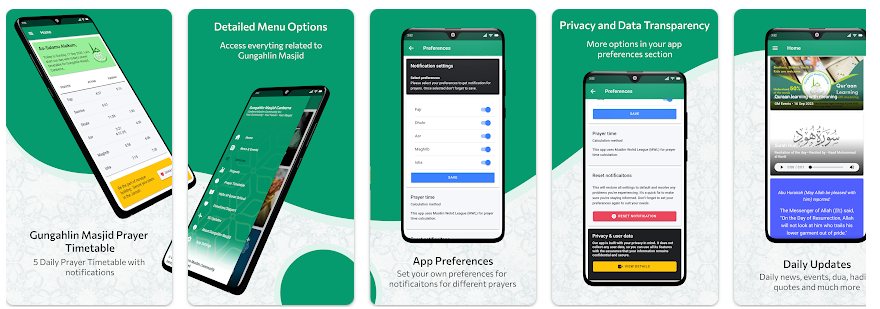
More → App Settings → Notification Preferences
Choose prayer reminders
- Expand Notification Preferences.
- Turn on Notify beside each prayer for a standard notification.
- Turn on Athan if you also want the Athan prompt for that prayer. This turns on its Notify switch too.
- Allow notification permission when the phone asks. On some Android devices, also allow exact alarms.
More → App Settings → Athan
Choose an Athan reciter
Expand Athan in Settings. Select a reciter, tap the play icon to preview a recording, or tap Download to make it available offline. You can remove a downloaded recording later.
Downloaded audio helps when connectivity is poor; prayer notifications still depend on your device’s notification settings.
More → Qibla Finder
Find the Qibla
Allow location and compass access if prompted. Hold your phone flat, away from metal or electronics, and turn it until the arrow points towards the Kaaba marker. The screen also shows the bearing and approximate distance to Mecca.
Tap Help or Calibration tips if the arrow seems inaccurate. The phone can vibrate when aligned.
Your phone’s Home screen
Add a prayer widget
On iPhone or Android, open the phone’s widget picker from the Home screen and look for Gungahlin Masjid Canberra. Choose a prayer-time layout that fits your screen; Iqamah-only and Athan & Iqamah options are available. Open the app occasionally to refresh the widget’s prayer data. Widget sizes and placement depend on your device.
03 · Stay connected
News, events and reminders
Explore the tabs
- All groups news and upcoming events by date, including ongoing events under today.
- Weekly groups recurring programmes by weekday, beginning with today.
- Interested shows events you saved with the heart.
Tap a card to open its details. Weekly times appear when provided by the mosque.
Save an event and set a reminder
- On a non-weekly event, tap the heart to add it to Interested.
- When asked, choose whether you also want a reminder. You can save the event without one.
- Open Interested and use the bell to turn an available reminder on or off. Tap the heart again to remove the event.
Reminder availability depends on the event date and notification permission. News articles and weekly programmes do not show the same Interested action.
04 · Daily learning
Qur’an, dua and Sunnah
More → Qur’an Recitations
Listen to a surah
- In Surahs, browse the list or filter by imam when that option is available.
- Tap a surah to see its recordings. Tap Play beside a reciter.
- Use the player to pause, seek, go back or forward 15 seconds, and repeat a recording. Previous and Next appear for a playlist queue.
- Tap Download on a recording for offline listening where audio is available.
Open About this surah or About the reciter for published background and biography details.
More → Qur’an Recitations
Save favourites and playlists
- Tap the heart beside a surah to place it in Favourites.
- To create a playlist, select the squares beside surahs in the Surahs tab, then tap Add to playlist.
- Create or choose a list. In Playlists, open a list, drag its handles to reorder recordings, and tap Play to listen in that order.
Use Refresh on the Surahs tab to fetch newly published recitations.
More → Dua Library
Find and keep duas
- Browse by Category, search the All list, or revisit the Favourite tab.
- Open a dua to read its Arabic text, transliteration and translation when published. Use audio controls if an audio recording is available.
- Tap Add favourite, Share or Copy on the dua detail screen.
- Use the settings icon on a dua or App Settings to adjust Arabic font, size, transliteration and translation.
More → A Day in Sunnah
Build a daily routine
- Open Explore to search activities, save favourites and select acts to add to a list.
- Use My Lists to create or edit routines. Tap Use daily on the list you want shown in Today.
- In Today, tap a checkbox when you complete an act. Open an activity to read its details.
- Optionally enable Daily progress history in Sunnah settings to see your progress report, trends and the last 40 tracked days.
Your routines and progress are saved on this device. The daily reset time can be changed in Settings.
05 · Our community
Giving, services and mosque information
Donate
Choose how to give
- Online: read about the impact of giving, then continue to the published donation provider.
- Bank: view current account details and use the copy buttons for BSB and account number. Verify the recipient before sending.
- Daily: explore regular giving on the mosque website.
- Appeals: when active, choose a campaign; a featured appeal may appear first. Use the donation and details links where available.
Payments are completed on an external provider or through your own bank, not inside the app.
More → Projects / Services
Explore community work
Projects has an Overview plus Ongoing, Upcoming and Completed lists. Tap a project to expand its summary, then choose View project for the full website page.
Services has an Overview and service listings. Tap a service to reveal its summary and website link. Featured items may be highlighted in each overview.
More → Hafiz Al-Quran School
School information
Read the school introduction, journey, course information and enrolment guidance. Follow the website links for current course and registration details.
More → Executive Committee / About Gungahlin Mosque
Meet the mosque
Executive Committee shows the latest update, member information and links to subcommittees and previous committees.
About Gungahlin Mosque introduces the mosque, facilities and contact options, with links to the full website pages.
06 · Make it yours
Settings and help
More → App Settings
Personalise the app
Expand a section to change its options. Notification Preferences and Athan control prayer reminders and reciter playback. Weather lets you show weather on Home and choose animated or static icons. Dua controls the Arabic font and display options. Sunnah Progress controls local history and the daily reset time.
Weather uses the Gungahlin Mosque area rather than your personal location. Qibla Finder separately requests location access when used.
Need a hand?
App Settings includes Help using the app, Privacy & User Data, and Application Feedback. Use Feedback to tell the team about a problem or suggestion.
Rate the app
In App Settings, tap Rate our app to open the App Store or Google Play listing for your device. Reviews are optional.
The Privacy section links to the mosque’s app privacy page. Reset Notifications is available if you want to restore notification settings and configure them again.
Quick answers
If something does not work
Why did a prayer notification not arrive?
Check that Notify or Athan is enabled for that prayer, allow notifications in your phone settings, and grant exact alarm access if Android asks for it. Reopen the app while online so the latest timetable can load. Your phone’s notification and power-saving settings can also affect delivery.
Why did the Athan not play automatically?
The app intentionally waits for you to tap Play in the Athan popup. Selecting Athan also schedules a notification; selecting Notify alone does not add the Athan popup.
Why can’t I see a particular event, recording or service?
The app displays what is currently published. Pull down to refresh where supported, or use the relevant Refresh button. Some information and audio require an internet connection. Check the mosque website for the latest details.
Will my saved lists follow me to a new phone?
Preferences, favourites, interested events, playlists and Sunnah routines are stored on the current device. Do not assume they will transfer automatically to another device or survive clearing app storage.
Share this page


Share this page